
│By Becca Gillot, Gale Digital Scholar Lab Product Manager│
One of the easiest tools to understand and use in Gale Digital Scholar Lab is the Ngram tool. This blog post will explain the tool itself, how to use it to explore your content set, and some tips and tricks for getting the most out of your visualisations.
The Ngram Tool
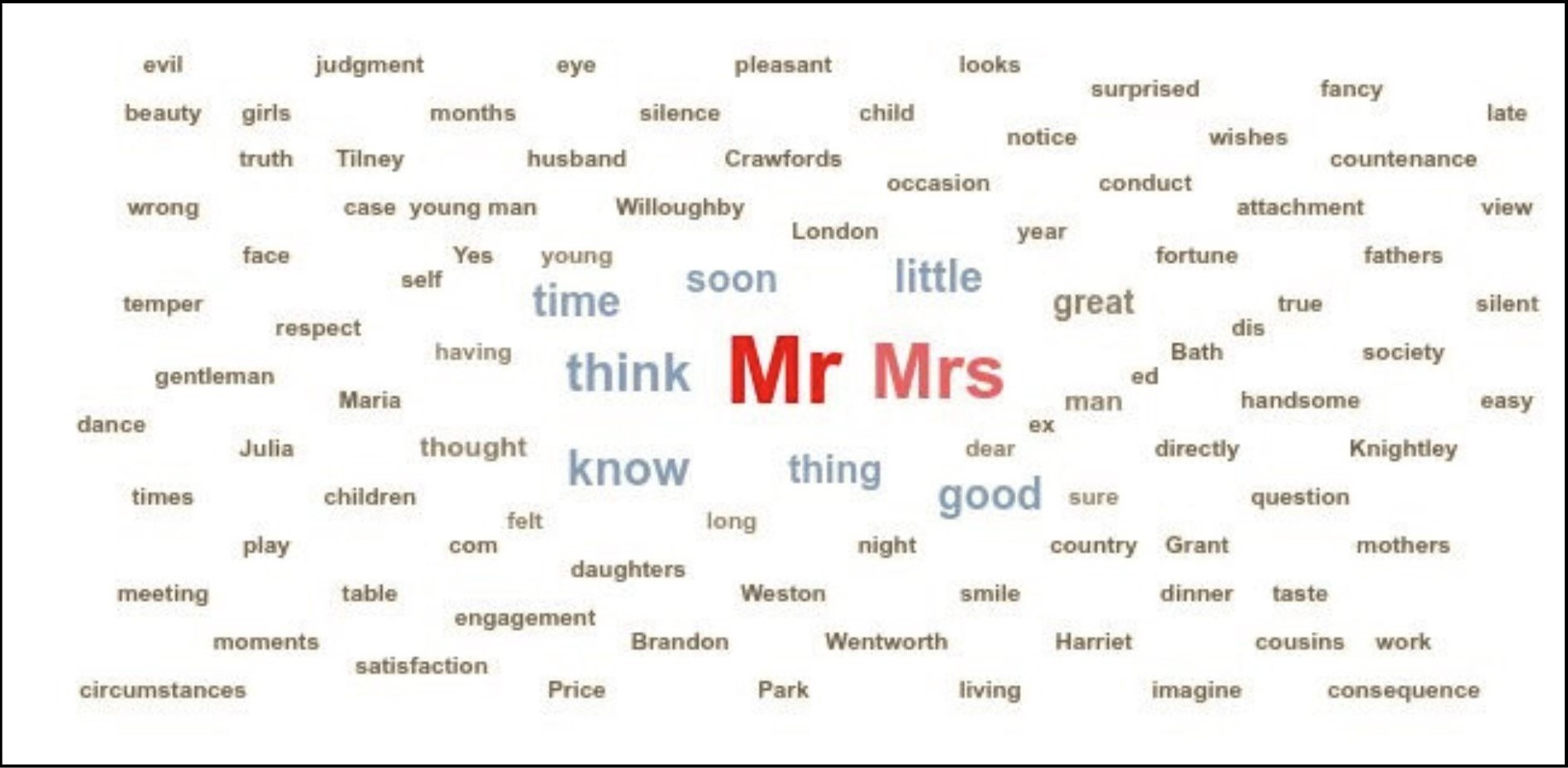
The Ngram tool is one of the easiest to understand in Gale Digital Scholar Lab. The tool works its way through the cleaned OCR that you have created (by applying a cleaning configuration to your content set) and counts how many times an ‘Ngram’ appears, before displaying that data as either a word cloud or a bar graph.
The Ngram tool is great for getting a high-level overview of your content set, so you can see at a glance the themes, key concepts, and ideas contained in the documents you are exploring. This type of distant reading is particularly great for large content sets that can be unwieldy to explore using close reading, or for content sets you’re not familiar with, but can also be used to analyse specific texts, such as an individual monograph. Even if you know your material really well, the Ngram tool can be a great way of presenting that knowledge as an accessible snapshot that others can quickly understand.
What is an Ngram?
You’ll notice we are specifically referring to ‘Ngrams’ rather than words, and this is because the tool doesn’t recognise ‘words’ in the same way that we, as humans, do. Instead, it’s looking for a ‘token’ – a string of characters with a space at either end. This string of characters could be a specific word, like ‘people’ or ‘together’, but equally applies to something like ‘dhrheauhf’, which we wouldn’t count as a ‘word’ but still counts as a token, and therefore a potential Ngram. If you’re seeing a lot of these junk terms in your results, you can add them to the stop word list in your cleaning configuration to improve the quality of your output. Indeed, you can actually use Ngrams in this way intentionally – as part of your cleaning methodology – to improve the results you obtain when using other text and data mining tools.

It’s also worth noting that ‘Ngrams’ can be varying lengths. The most common is a unigram, which consists of a single token, such as ‘dog’ or ‘sheep’, but you can also have longer Ngrams, such as a bigram, which is two tokens appearing together, e.g. ‘woolly sheep’ or ‘sausage dog’. Gale Digital Scholar Lab will return Ngrams between 1 and 6, and you can configure which of these you’d like to see when you set up the tool.
Note: Ngrams are case sensitive, so ‘horse’ and ‘Horse’ will appear as separate Ngrams. You can choose ‘all lower case’ in your cleaning configurations to override this if it makes sense for your research.
Getting More Context
When doing detailed research, it’s important to be able to move from high-level, distant reading, to close reading where you return to the text itself, allowing you to fully understand the context behind your visualisation.
An excellent way to do this in the Ngram tool is by using the mark-up view – if you select the Ngram you’re interested in, you can open the inspect panel, which will then give you a list of the documents that contain that Ngram, along with how many times that Ngram appears in the document, how many total tokens there are in the document, and therefore what percentage of the document is made up of the Ngram you’ve selected. If you want to understand where specifically the Ngram appears, you can select the document to open the image viewer, which will allow you to explore the original text.
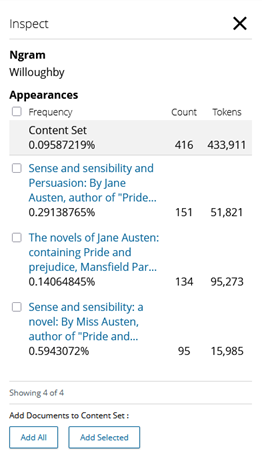
The inspect panel for the Ngram ‘Willoughby’. The text in blue is a hyperlink, and if clicked it will open the document for the user to read.
Start Words
The most common use of the Ngram tool is that described above – to identify the most common Ngrams in your corpus. However, there may be times when the researcher is interested in the frequency of specific terms that they’ve already identified. The Start Word list functionality, which was developed in direct response to a demand from our users, lets you do this.
During tool set-up, you will see the option at the bottom to add ‘Start Words’. As a default, the tool will run without start words, but if you have a specific list of words you are interested in, you can upload it here.
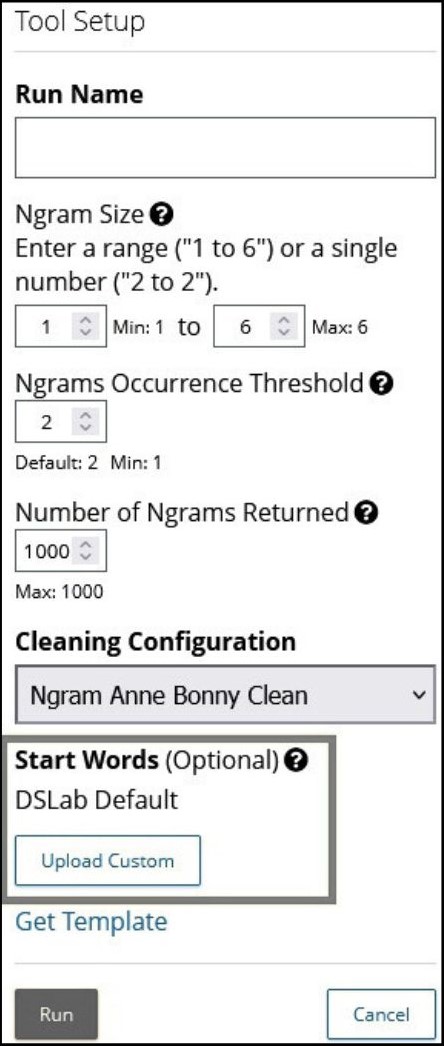
It’s important to note that the tool can either display your start words, or the most frequent Ngrams overall – it does not combine the two. So, if you include start words in your run, all of the terms returned will include those start words. You will see unigrams of those terms specifically, but also longer Ngrams that include those terms alongside other words that they frequently occur with.
The start word functionality is a great way of doing a deep dive into your content set, especially when there are specific terms and topics that you want to explore.
Note: Ngrams are identified from your cleaned text – if you are using a default cleaning configuration, or a personalised one, it is likely that you have included a number of stop words. Remember, stop word lists remove ‘filler’ words from the OCR that could be deemed ‘clutter’ and to detract from the analysis. As these stop words will have been stripped from the text before the Ngram algorithm ran, so your final Ngram list will not include any stop words.
This means longer Ngrams may be identifying words that were not originally next to each other in the text but were actually separated by filler words. Because you stripped these filler words out using your stop word list, the remaining words may appear as a bigram or longer. Often these words still hold significance as an Ngram, but if you are specifically exploring longer Ngrams, you may want to do some additional review to understand the original context of these terms.
Time to Explore!
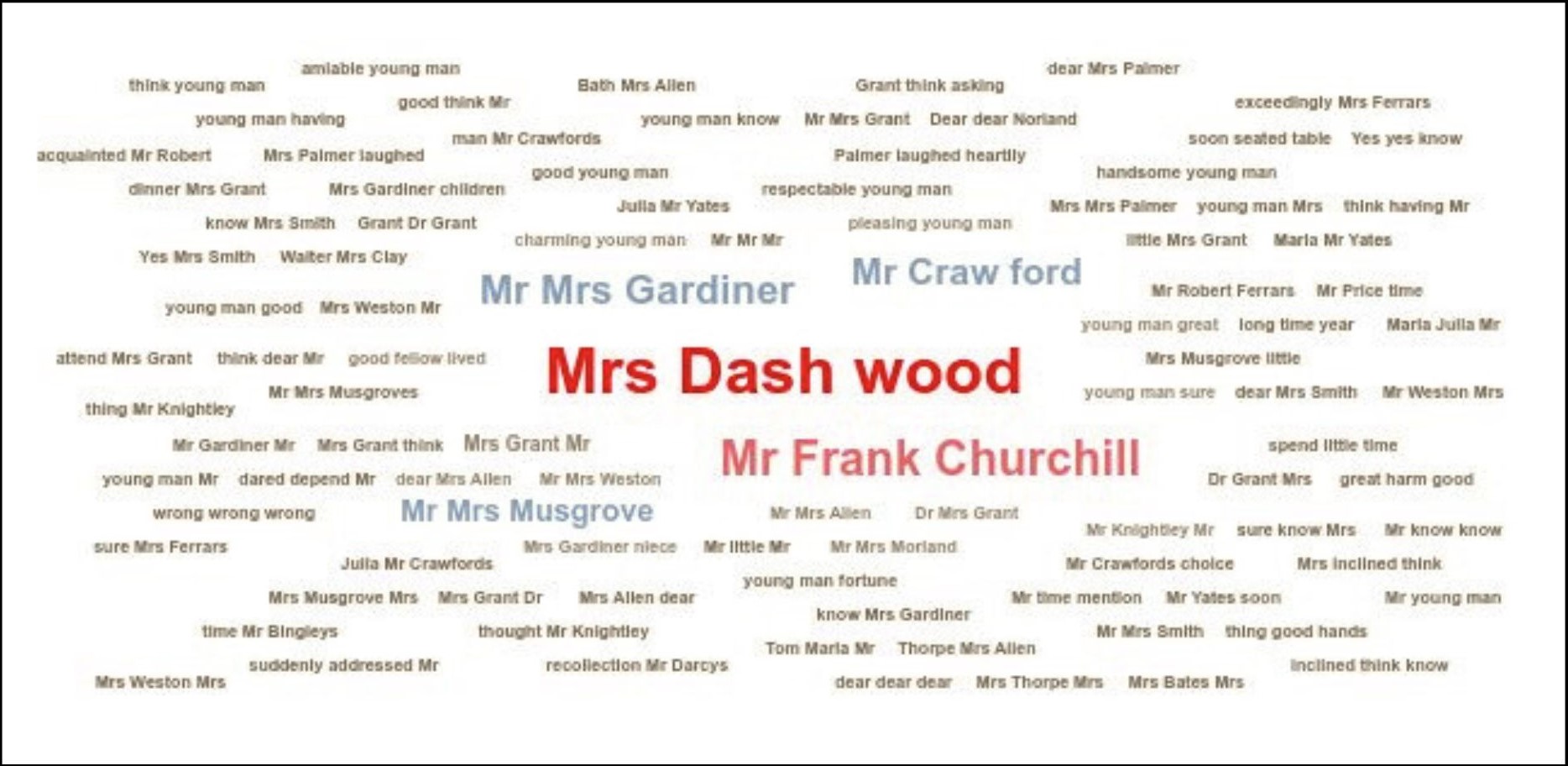
Overall, the Ngram tool is a fantastic way to explore your content set, either to provide a high-level overview or to allow you to dig deeper into the text. It is easy to understand and use, making it a fantastic starting point for use in the classroom, or for those who are just starting out with digital humanities!
If you enjoyed reading about [your topic], check out these posts:
- Gale-SHAFR Fellows Explore New Digital History Methods
- A New Course in Gale Digital Scholar Lab: Introduction to Digital Humanities
- Hacking History with Gale Digital Scholar Lab